
The Calls section provides a centralised view of all call recordings available for analysis and evaluation. Each call is processed to extract key insights, including sentiment, emotion, language, and quality scores. From this section, users can:Documentation Index
Fetch the complete documentation index at: https://docs.inya.ai/llms.txt
Use this file to discover all available pages before exploring further.
- View processed calls
- Upload call recordings
- Automatically ingest calls through integrations
- Review analytics and evaluation results
Viewing Calls
Overview
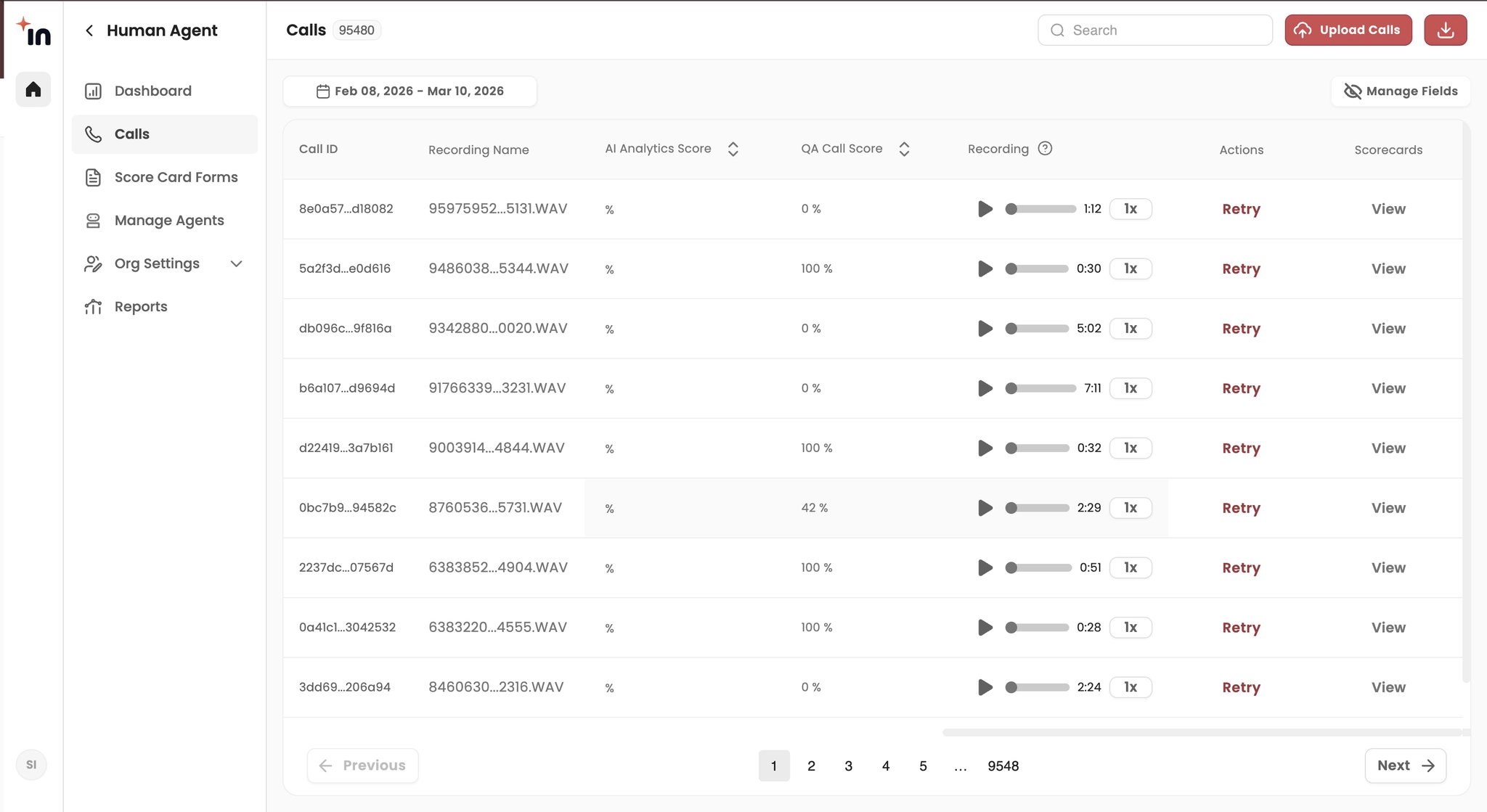
The Viewing Calls page displays a list of all call recordings that have been uploaded or ingested into the system. Each row in the table represents a call and includes important information related to the interaction.Call List
The call list provides a structured overview of all interactions along with key metadata and analytics. Information displayed in the call list includes:- Call ID – Unique identifier for the call
- Recording Name – Name of the uploaded audio file
- Processed Date
- Agents - Call performed by a certain agent
- Status – Processing status of the call
Key Metrics – Important tags or indicators detected during processing - Call Duration – Length of the conversation
- Language – Language detected or selected for the call
- Customer Sentiment – Sentiment detected from the customer
- Agent Sentiment – Sentiment detected from the agent
- Emotion – Emotion detected in the conversation
- QA Call Score – Score assigned during evaluation
- Audio Recording
- Actions
- View Scorecard CTA
Call Actions
Uploading Calls
Overview
Call recordings can be uploaded manually for processing and analysis. Once uploaded, the system processes the audio to generate insights and make the call available for evaluation.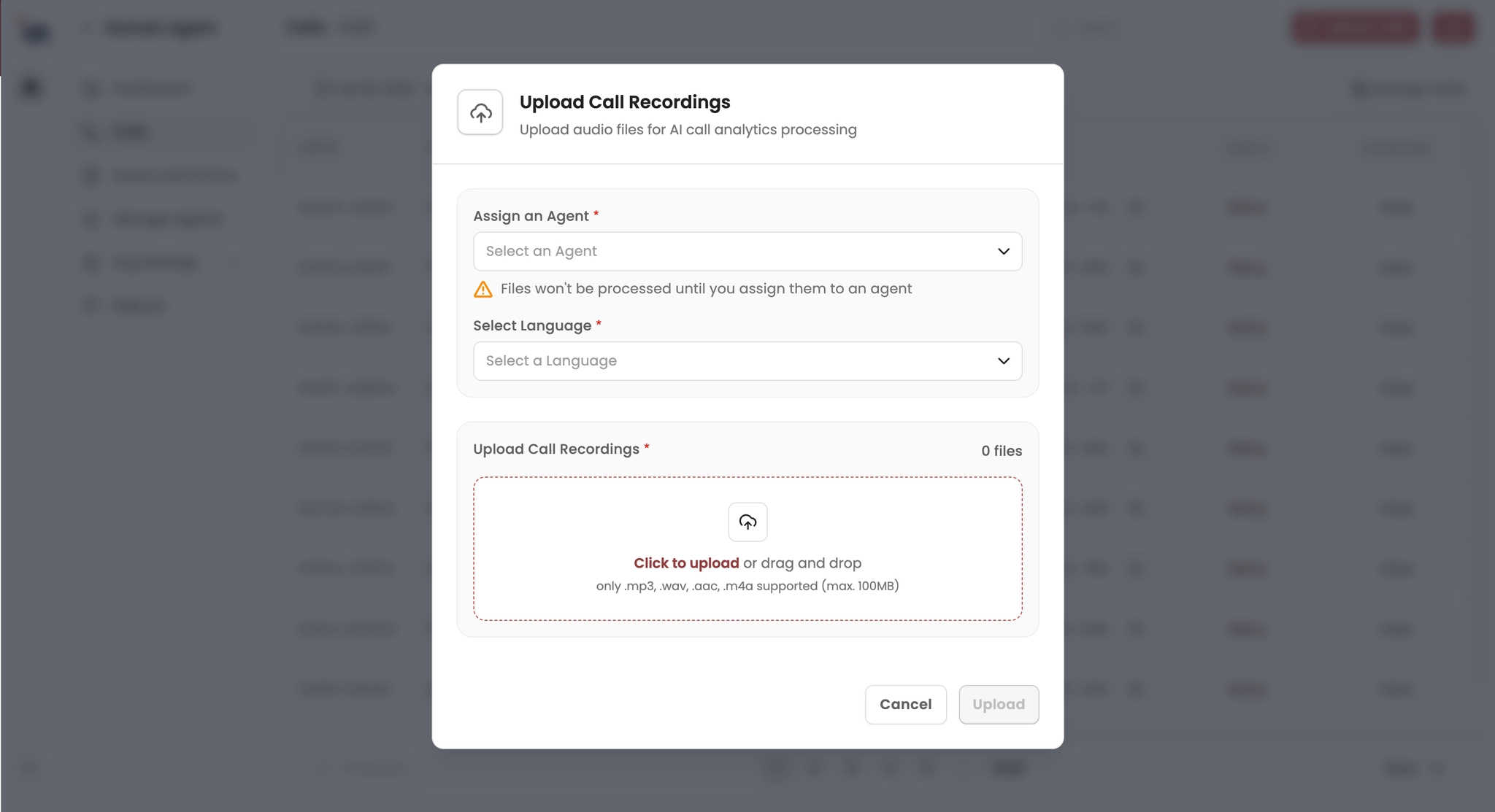
Steps to Upload Calls
- Navigate to the Calls page
- Click Upload Calls
- Upload the call recording files
- MP3
- WAV
- AAC
- M4A
Assigning an Agent
During upload, each call must be associated with an agent. Steps:- Select Assign an Agent
- Choose the agent responsible for the call
Selecting the Language
Users must select the language of the call recording. This allows accurate processing and analysis of the audio.Uploading Audio Files
Users can upload files by either:- Clicking Upload and selecting files from the device
- Dragging and dropping files into the upload area