
Scorecard Forms in Aura are structured evaluation templates used to assess the performance of human agents during customer calls. These forms allow supervisors and quality analysts to review interactions using predefined criteria and assign scores based on the agent’s performance. Each scorecard form contains sections and questions that represent different aspects of the call, such as communication quality, issue handling, compliance, and customer experience. The evaluation results help organizations monitor agent performance, maintain service quality, and generate insights through Aura’s analytics.Documentation Index
Fetch the complete documentation index at: https://docs.inya.ai/llms.txt
Use this file to discover all available pages before exploring further.
Why Scorecard Forms are Important
Scorecard forms provide a standardized way to evaluate agent calls. Without structured evaluation criteria, quality monitoring becomes subjective and inconsistent. Scorecard forms help organizations:- Maintain consistent evaluation standards across teams
- Measure agent performance using structured scoring
- Identify coaching and training opportunities
- Ensure compliance with operational guidelines
- Generate performance analytics for agents
Creating a Scorecard Form
Follow these steps to create a new scorecard form.Step 1: Navigate to Scorecard Forms
From the left navigation menu: Scorecard Forms → Create Form This opens the scorecard form builder.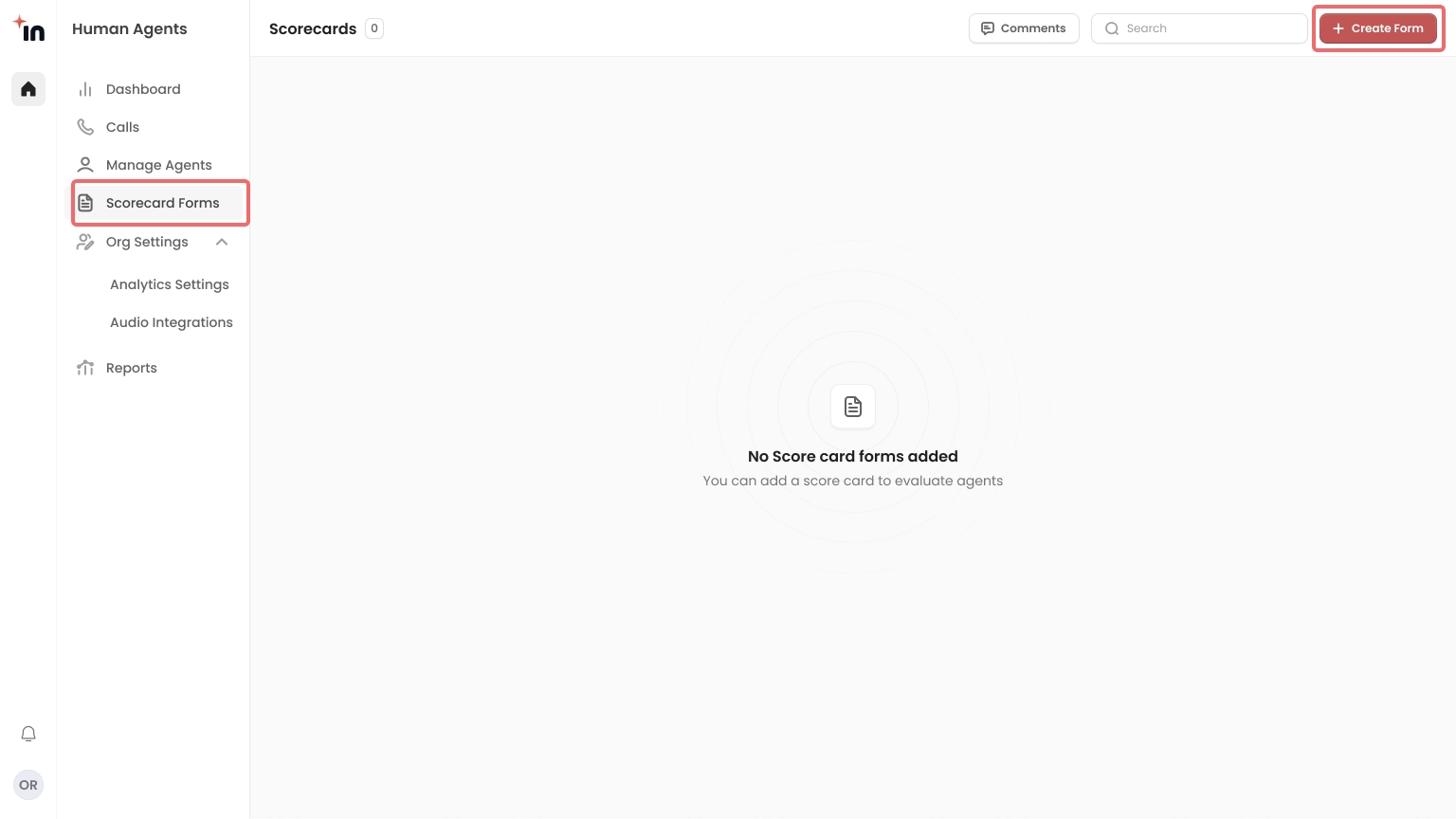
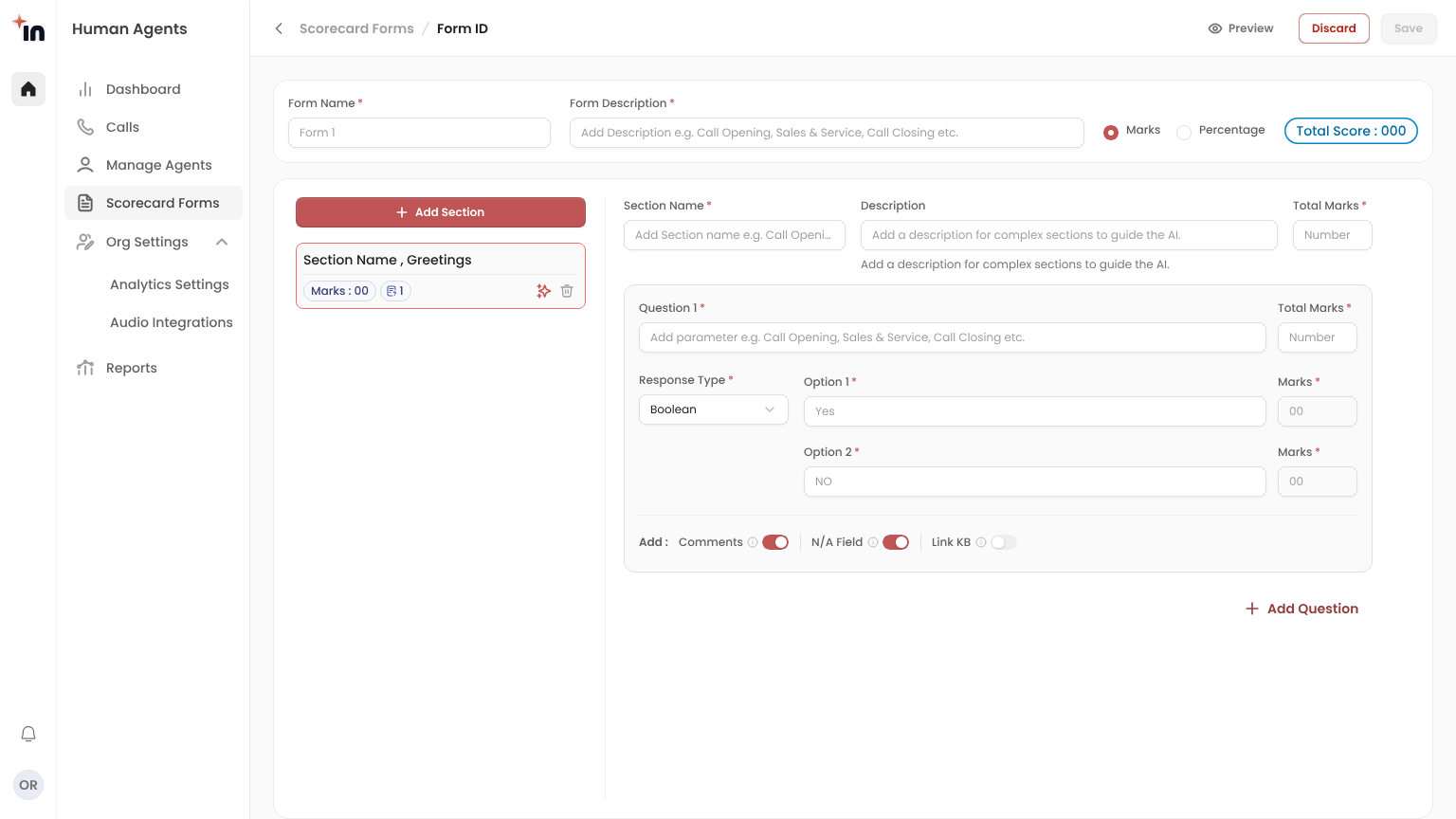
Step 2: Enter Form Details
Provide the basic details for the scorecard.Form Name
Enter the name of the scorecard.Example: Customer Support QA Evaluation
Form Description
Provide a brief description explaining the purpose of the form.Example: Evaluates customer support calls based on greeting, communication clarity, and issue resolution.
Marks Configuration
Aura allows score-based evaluations. When marks are enabled:- Each question contributes to the total score
- The system automatically calculates the maximum marks
Components of a Scorecard Form
A scorecard form is composed of several configurable components that define how evaluations are structured.Sections
Sections help organise evaluation criteria into logical groups. Examples include:- Greeting & Introduction
- Communication Skills
- Issue Resolution
- Compliance
- Click Add Section
- Enter the Section Name
- Define the Total Marks
Each question will carry 5 marks.
Users can also:
- Delete sections
- Rearrange sections
- Modify section details
Questions
Each section contains one or more questions used to evaluate specific aspects of the call. Example questions:- Did the agent greet the customer professionally?
- Did the agent clearly understand the issue?
- Was the solution communicated properly?
- Add multiple questions
- Delete questions
- Rearrange questions within a section
Question Format
Each question in the scorecard follows a structured format to ensure consistent evaluation.A question includes the following elements:
Question
The evaluation statement used to assess a specific behaviour or action during the call.Example: Did the agent greet the customer professionally?
Response Type
Defines how the evaluator responds to the question. Aura supports multiple response formats, including:- Boolean (Yes / No)
- Multiple Choice (Bullets)
- Multiple Choice (Checkbox)
- Comment-based responses
- Mixed question types
Response Options
Depending on the response type, evaluators can select from predefined options. Example: Yes / NoEach option can be assigned a score value. Example:
Yes → 5 marks
No → 0 marks
Question Options
Each question can include additional evaluation options.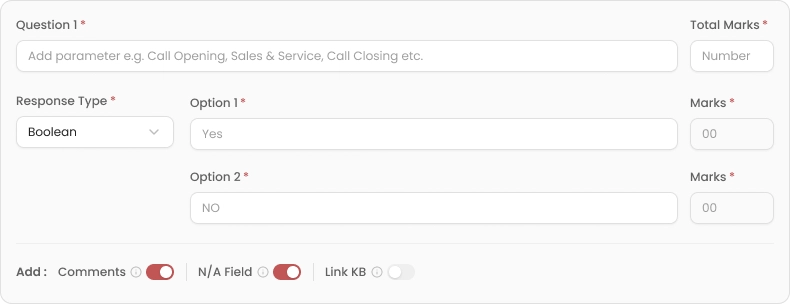
Comments
When enabled, the Comments option allows evaluators to provide written feedback during evaluation. This helps reviewers explain the context behind the score and provide constructive feedback for agent improvement. Example:The agent greeted the customer politely but missed confirming the order number.
N/A Field
The N/A (Not Applicable) field allows evaluators to mark a question as not relevant to the call being reviewed. Example:If the call does not involve billing, billing-related questions can be marked as N/A.
This ensures agents are not penalized for scenarios that did not apply to the interaction.
Fatal Section
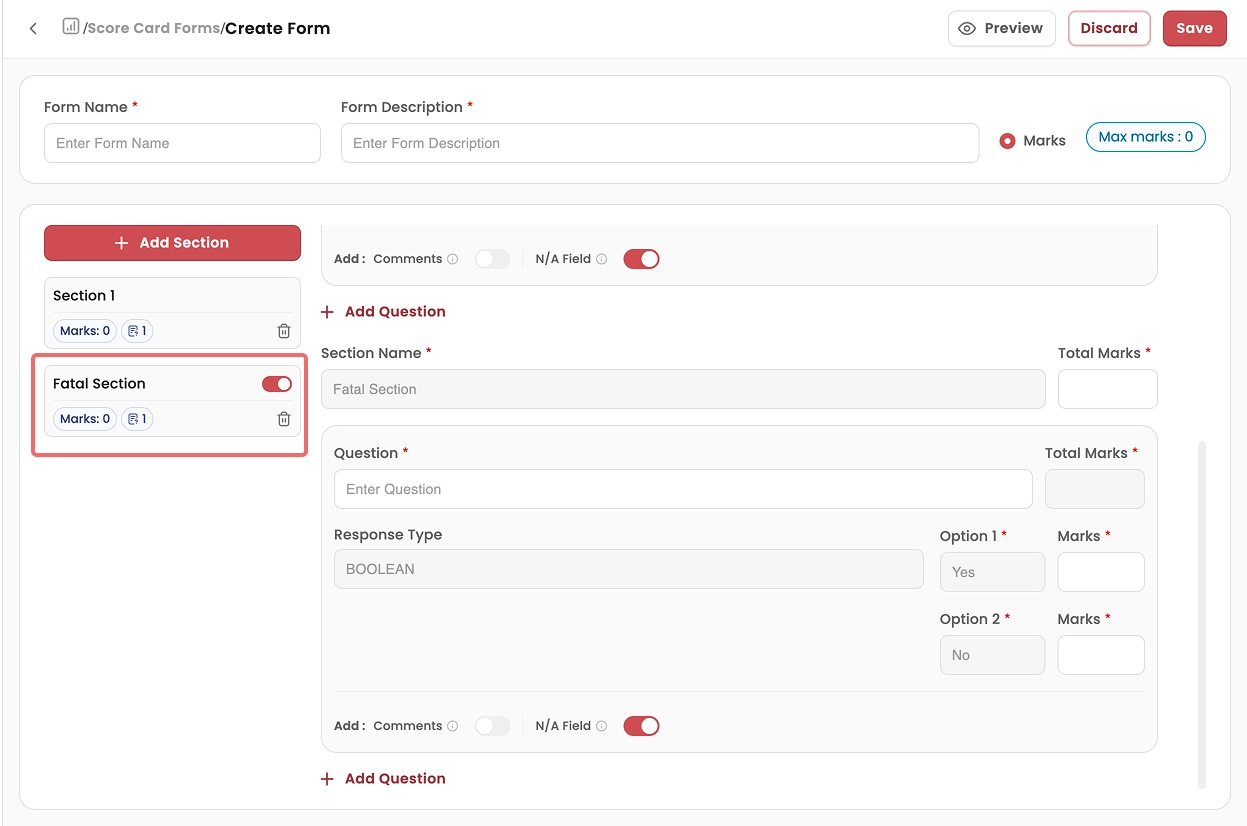
Fatal sections contain questions that represent serious compliance or process violations. Examples include:
- Security verification not performed
- Incorrect information was provided to the customer
- Mandatory compliance statement skipped
If a fatal question fails, the evaluation may result in automatic failure regardless of the total score.
AI-Generated Sections
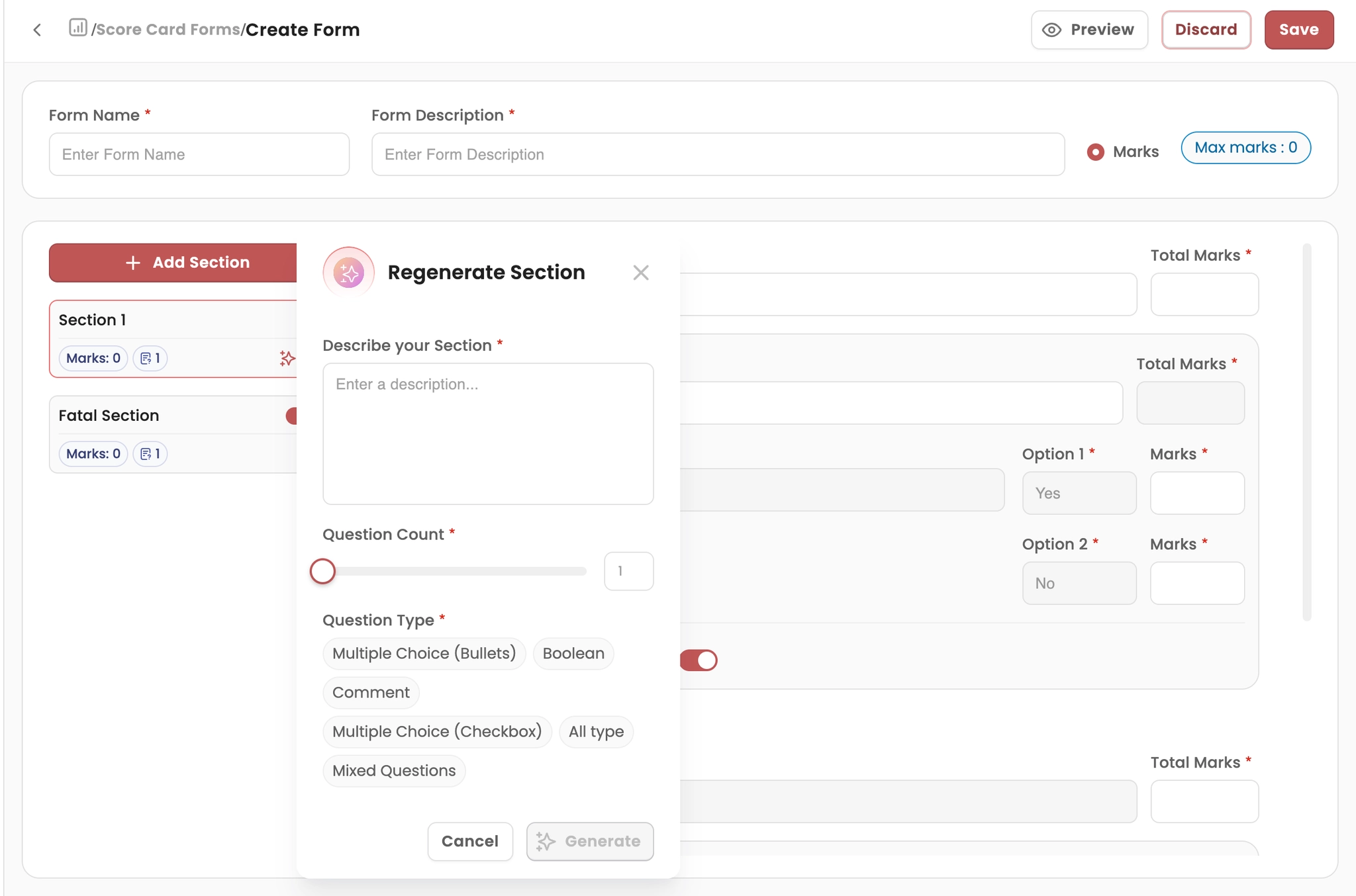
- Click the Generate Section option
- Describe the section you want to create
- Select the number of questions
- Choose the question type
- Multiple Choice (Bullets)
- Boolean
- Comment
- Multiple Choice (Checkbox)
- Mixed Questions
- All Types
This helps teams quickly build structured scorecards without manually writing each question.
Previewing the Form
Before saving the scorecard, users can review the structure using the Preview button. The preview allows users to check:- Section structure
- Question order
- Response types
- Scoring distribution
Saving the Form
Once the scorecard structure is complete: Click SaveThe form will be available in the Scorecard Forms dashboard and can be used to evaluate agent calls.